
Counterparties
Counterparties in Kick helps you manage and organize the vendors, customers, contractors, and other payees associated with your business transactions. Keeping an accurate counterparties ensures that transactions are properly linked to the correct entities, making reporting and reconciliation easier.
How to Access the Counterparties tab
Navigate to Accounting → Counterparties
Or head to https://use.kick.co/counterparties
Search & Edit Counterparties
There are two ways to edit Counterparties.
You can search and edit via Counterparties page.
You can edit Counterparties on the Transactions page.
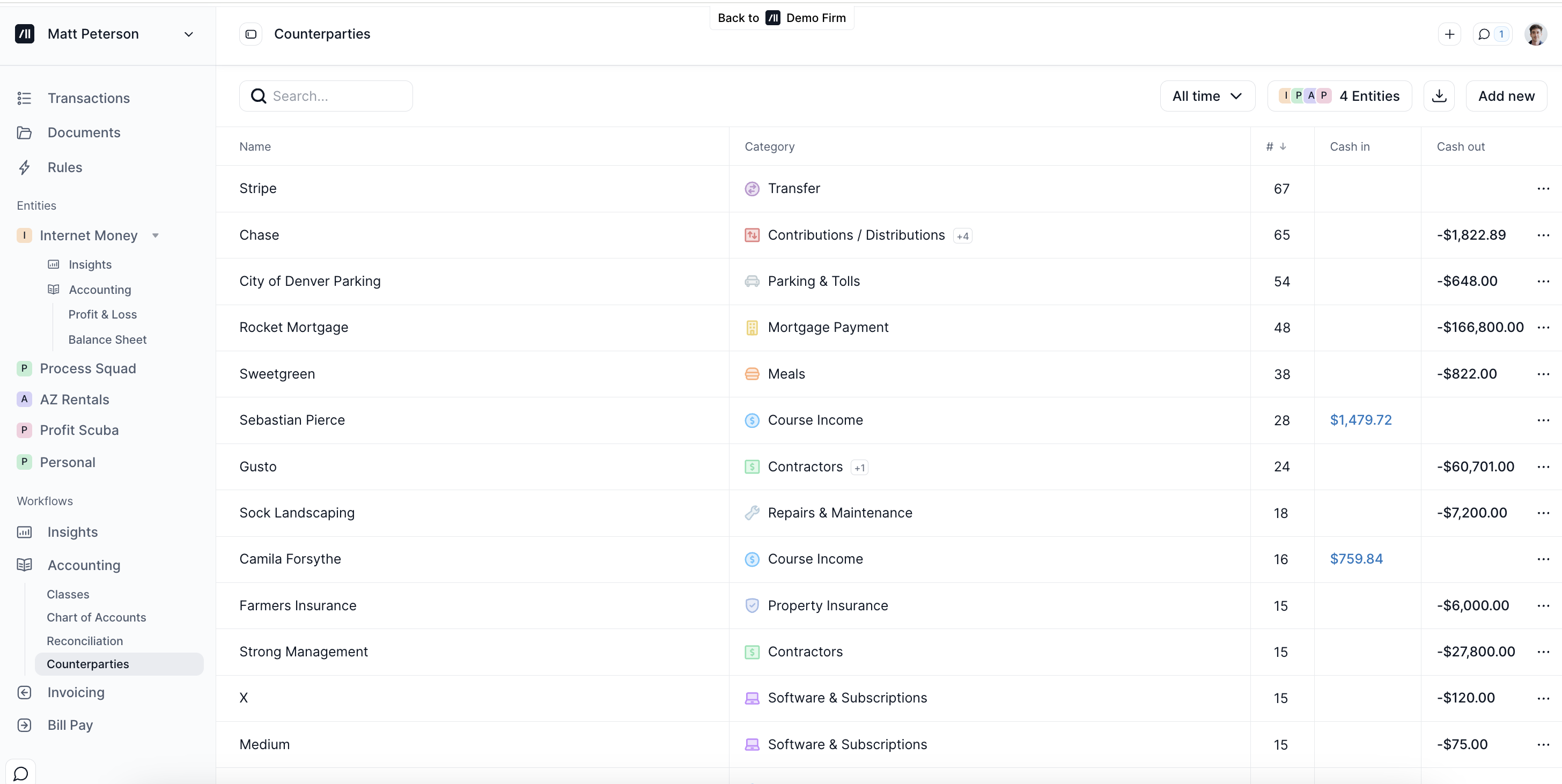
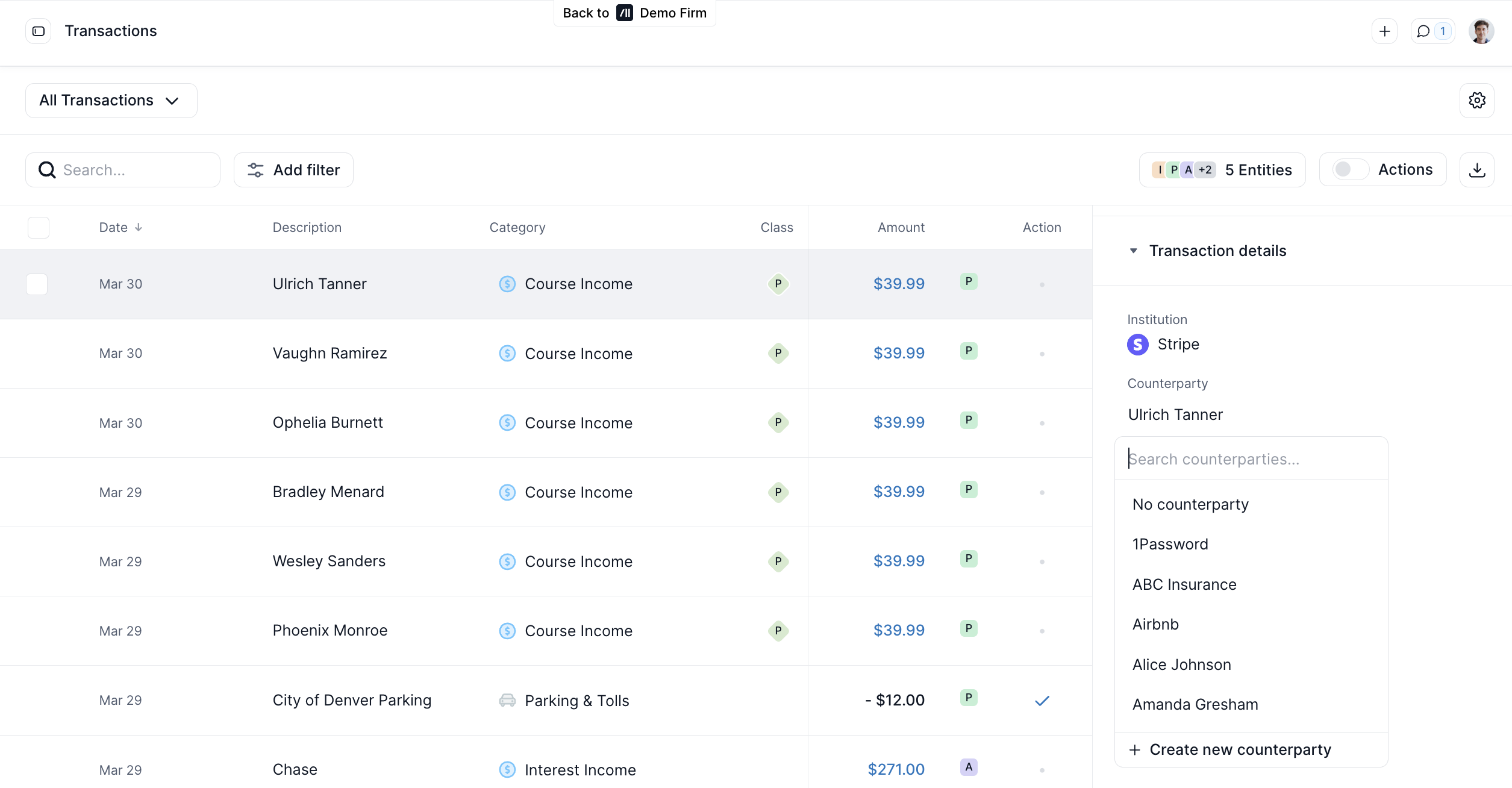
Assigning a counterparty via the Counterparties page
Use the search bar to find the counterparty you wish to view or edit.
Click on the three dots to the right of any contact to view or edit details or to view all the transactions associated with that contact.
Assigning a Counterparty on the Transactions Page
You can edit counterparties for one or multiple transactions directly on the transactions page.
Select one or more transactions using the checkboxes.
At the bottom bar, click Actions.
Choose Counterparty.
From there, you can assign the selected transaction(s) to an counterparty, or create a new one.
Adding a New Contact to the Counterparties
Go to Counterparties and click “Add New”.
Enter the name, email, and relevant details.
Click Add.