
Documents
The Documents tab is where all your uploaded and imported files live in one place. This includes items like Accounts Payables, Accounts Receivables, Account Statements, Assets, Checks, Financial Statements, Formation Documents, Lease Statements, Legal Documents, Payroll, Receipts, Tax-related Documents and more. Keeping everything organized here makes it easy to quickly find supporting documents, review records, and ensure your transactions are backed up with the right paperwork whenever you need it.
Accessing the Documents Tab
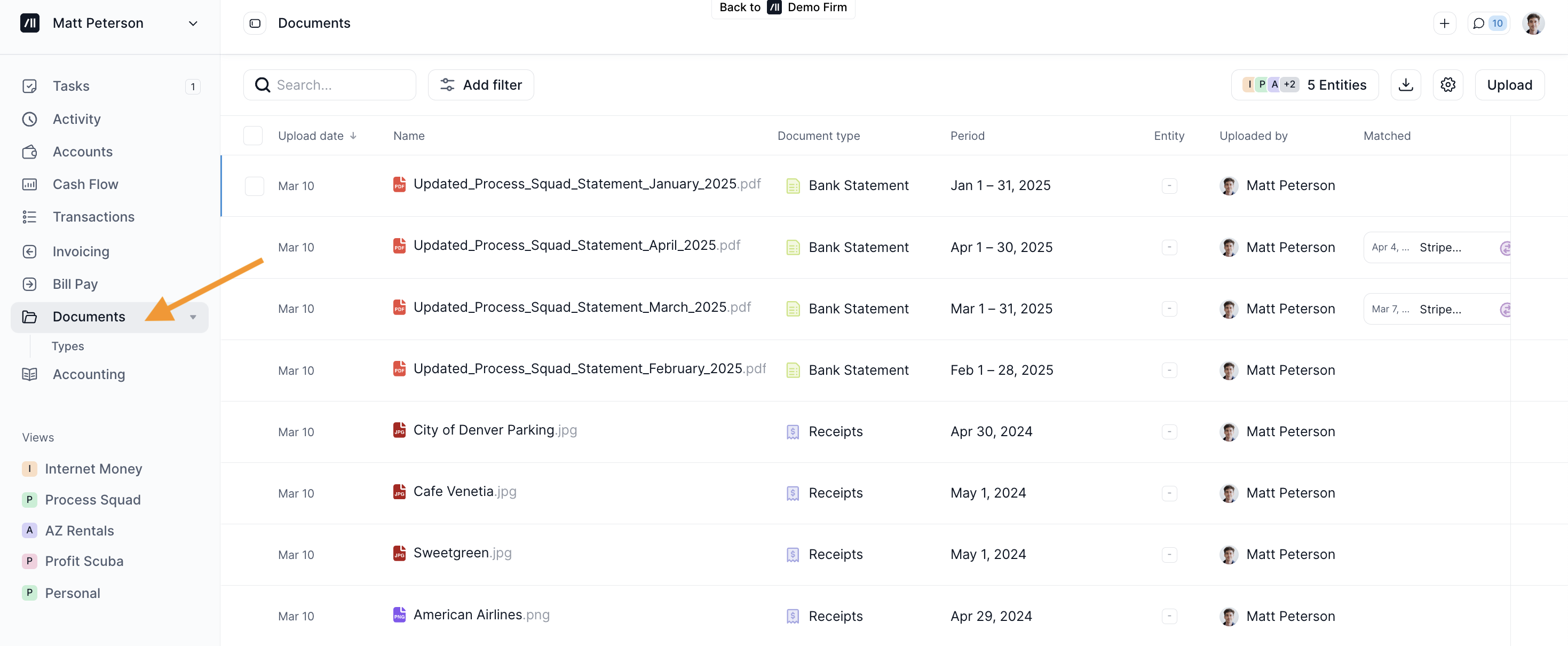
To access your Documents, click on "Documents" at the left side bar:
View and Update Document Details
View or Match a Document or Receipt to a Transaction:
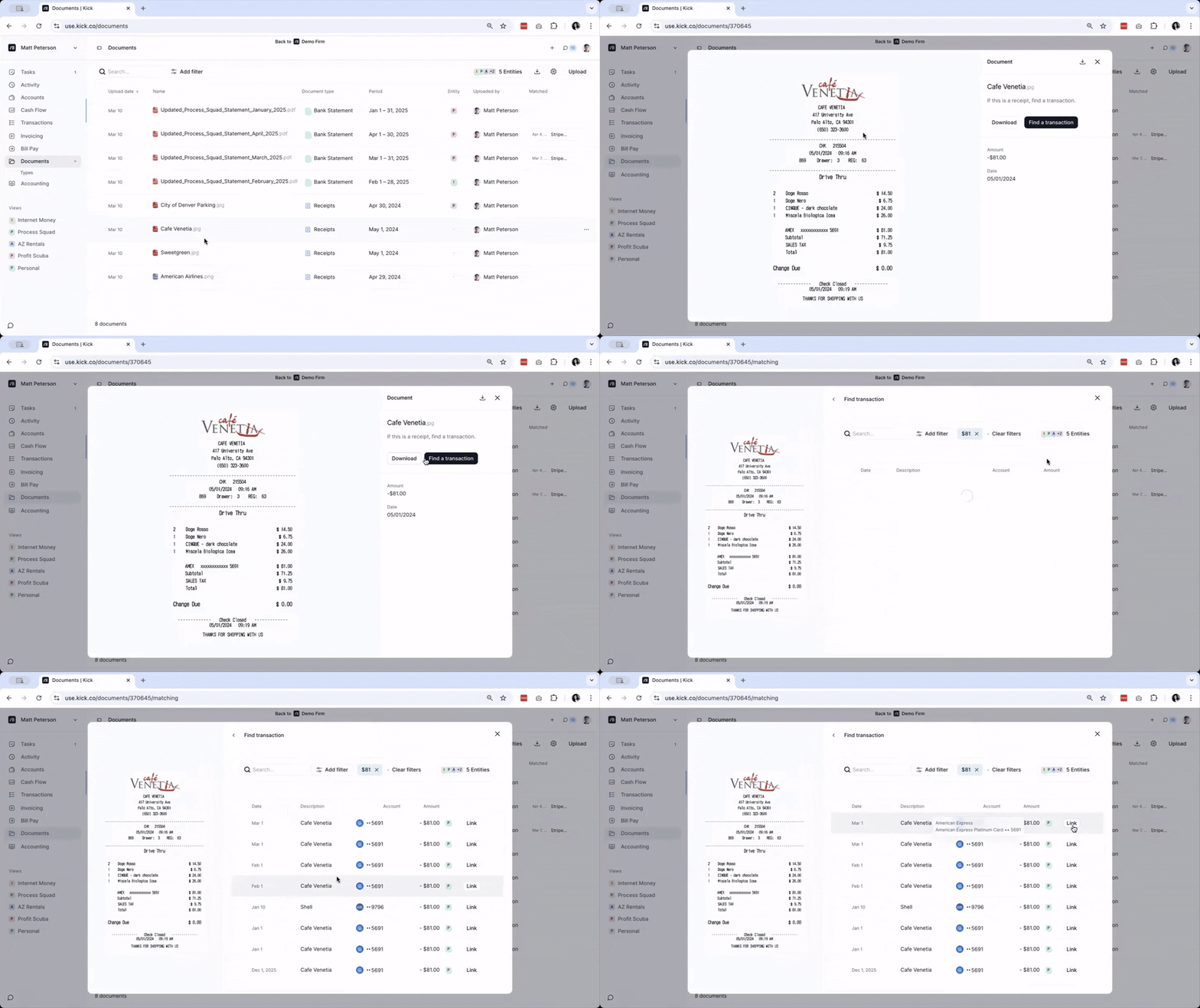
Click the file you want to view.
The document will open in a pop-up viewer.
Click Download to download the file, if needed.
Click Find a transaction to match the document or receipt to a transaction.
Search for the matching transaction and click Link.
To Update the Document Type and Entity:
Update Documents Individually:
Click the Document Type field for the document.
Select the correct document type from the list.
Click the Entity field.
Select the correct entity from the list.
Update Documents in Bulk:
Select the documents you want to update.
At the bottom of the screen, click Entity and choose the correct entity.
Click Type and select the appropriate document type.
NOTE: Documents default to your organization’s account when uploaded. If a document is left unassigned to an Entity, it will appear across workspaces. To change that, assign the document to an entity.
Download Receipts
To download multiple receipts:
Go to Documents
Filter to receipts (or the date range you need)
Multi-select and use bulk download for a zip
To download a single receipt, you can download that receipt from the detail panel of the transaction that it is attached to.