
Balance Sheet
Your Balance Sheet lists your business’s assets, liabilities, and equity as of a specific date, reflects the business’s financial position based on recorded transactions and will be used by your tax professional for tax preparation.
How to Review Your Balance Sheet
There are two ways to access your Balance Sheet.
Accounting Tab - Navigate to the Accounting Tab on the sidebar or visit this link: https://use.kick.co/accounting
Views (or Pages) - Navigate to the entity whose report you’d like to view. Click the drop down arrow to the right of the entity name to review the “Balance Sheet” tab under “Accounting”.
Choose Date - In the top left corner choose the date you’d like your Balance Sheet to reflect.
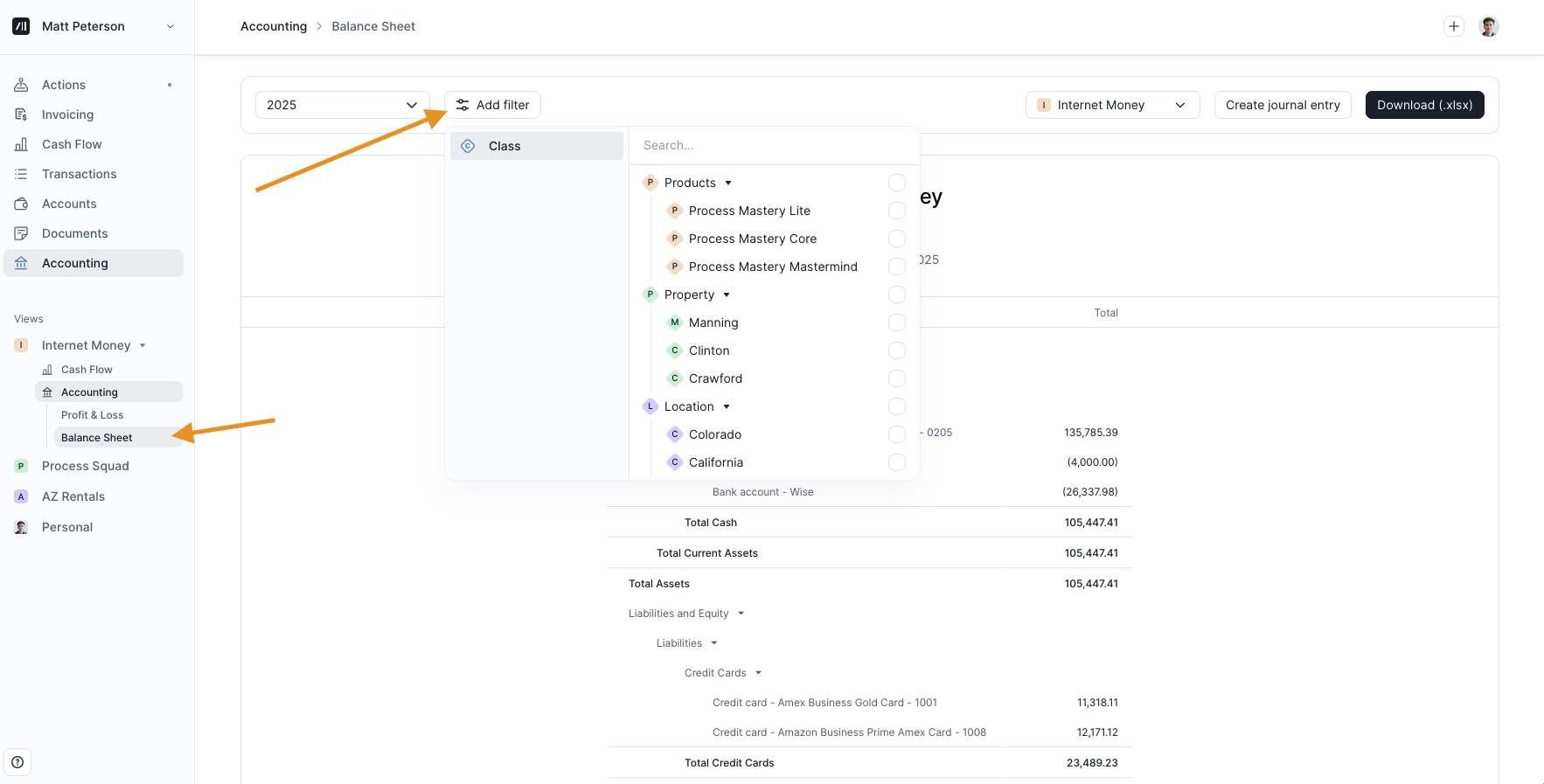
Filter Balance Sheet by Class
If you track assets, liabilities, or equity by project, department, or location, you can filter your Balance Sheet by class.
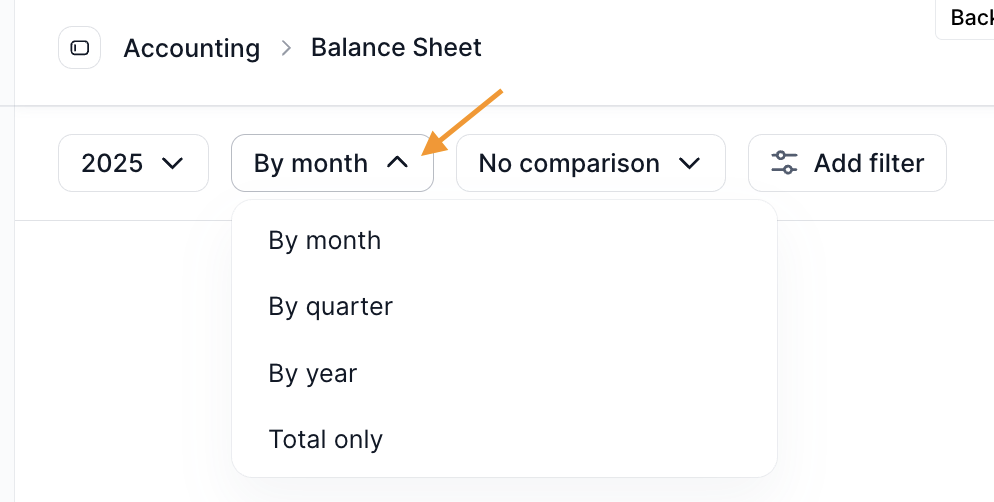
View Balance Sheet by Predefined Cycles
Additional view and comparison options are available on the Balance Sheet to support clearer financial analysis over time. You can display the Balance Sheet by month, quarter, year, or as a total only, making it easier to review your financial position at different points in time.
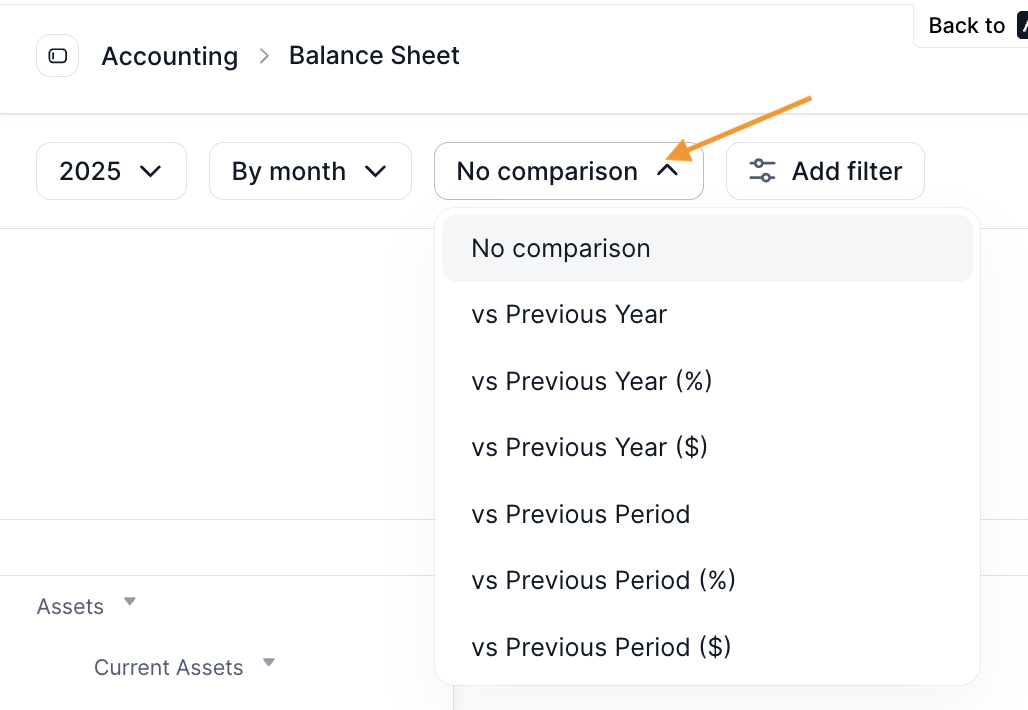
View Balance Sheet Comparisons
You can also enable comparisons against previous periods or previous years, shown as dollar or percentage changes. These tools help track changes in assets, liabilities, and equity, and quickly highlight how your company’s financial position has shifted over time.
How to view all transactions related to a line item in your balance sheet
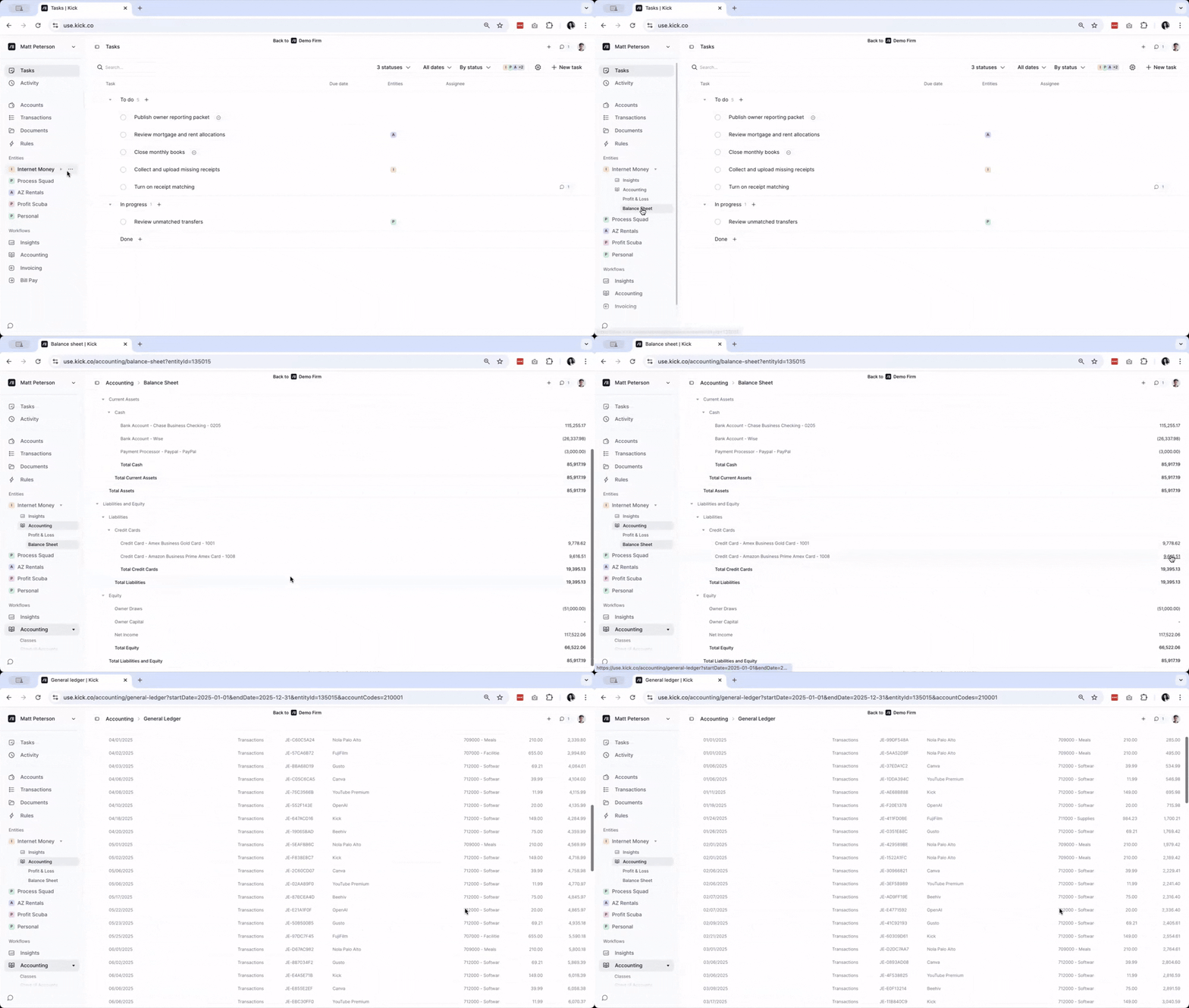
Select the Entity you want to view
Click Balance Sheet
Hover over the line item and click it
You’ll see all transactions associated with that line item
How do I upload the beginning balances for my balance sheet?
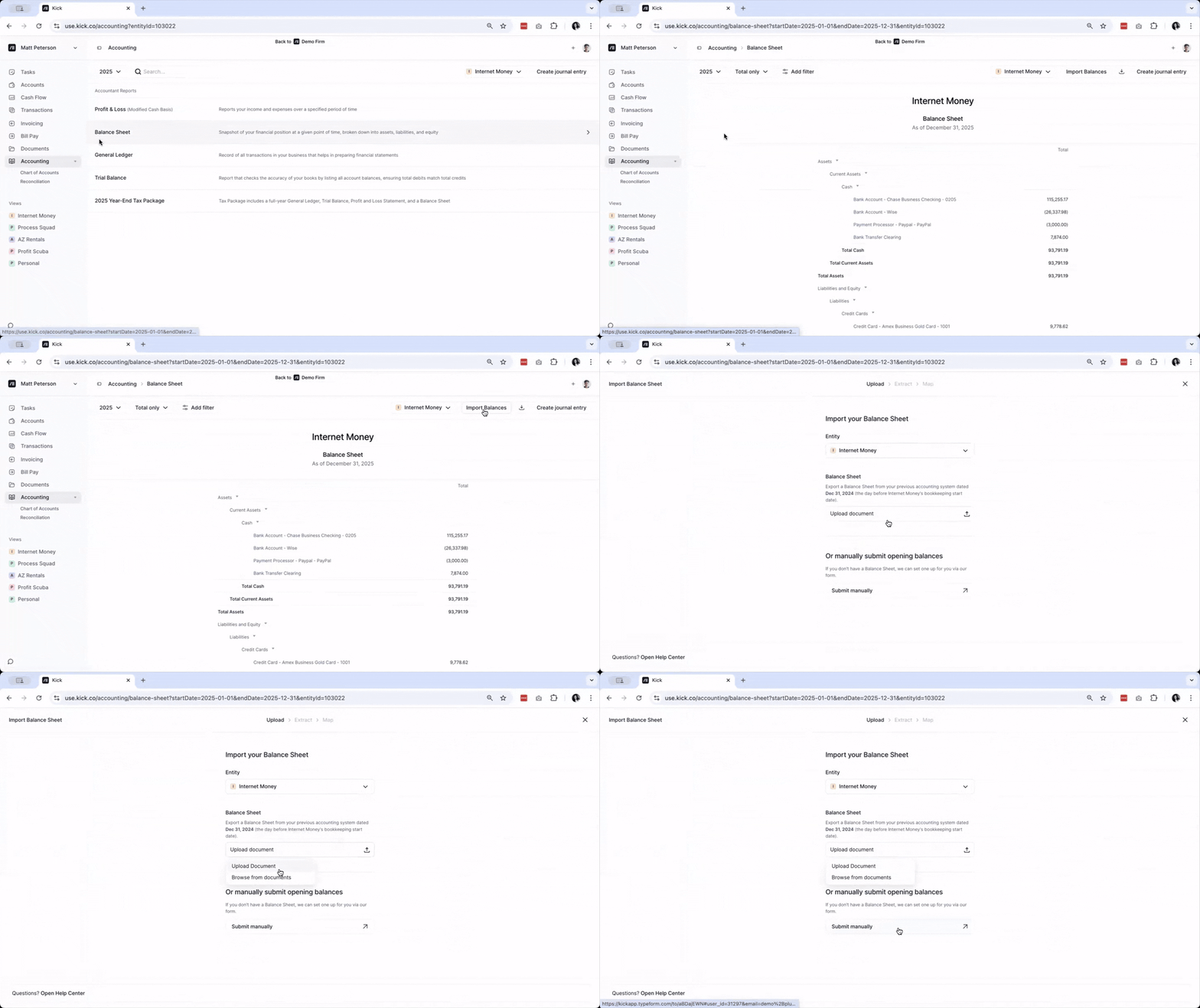
Navigate to the Accounting tab or go here: https://use.kick.co/accounting/ then click on Balance Sheet.
From here click on Import Balances.
If you have a Balance Sheet file, you can upload it by clicking on Upload Document. If you do not have a Balance Sheet file, you can choose the Submit manually option.
Why Can’t I See My Balance Sheet?
The Balance Sheet is available on all plans, including the Free Plan.
If you have not yet unlocked your Balance Sheet, please make sure that:
You have an active account.
You have submitted the Opening Balance survey linked on the Balance Sheet report within the Accounting tab.
If you have submitted your Opening Balance survey at least 3 business days ago but still can’t access your Balance Sheet, please message support via the in-app chat.
Clearing Accounts
Bank Transfer Clearing contains all of the transactions categorized as "Transfer" that occur between bank accounts. This should zero out automatically as long as all Transfers in your account have a pair. Transfers without pairs likely need to be recategorized (either to an Income or Expense category if they are currently miscategorized, or as Contributions/Distributions if they are transfers to unconnected accounts).
Payment Transfer Clearing contains all of the transactions categorized as "Transfer" between payment processors and bank accounts. Similarly, these transactions should in theory all have pairs so this accounts zeros out automatically.
Credit Card Clearing contains all of the transactions categorized as Credit Card Payment. If you have unpaired Credit Card Payment transactions, they may need to be re-categorized so this account clears as well.